


Echoing During Sessions? Here’s Why (And How to Fix It Fast!)

I’ve previously written about getting your highest-quality audio out of Zoom for remote sessions. But when a client uses Zoom strictly for video and directs you while your actual studio audio runs over Source-Connect, things get tricky fast.
It’s the standard setup for directed sessions every single day. Yet, one of the most common tech snags voice actors run into during these dual-connection sessions is the dreaded chaotic echo.
When actors hear an echo, their natural instinct is to hit the Mute button in Zoom.
Here’s the problem: Muting your mic in Zoom only stops your microphone from sending audio into the Zoom call. It does not stop Zoom’s incoming audio from playing through your headphones or studio monitors.
If client or director audio is coming through Zoom and returning through Source-Connect at the exact same time, you’re hearing everything twice. Even worse, if that Zoom audio leaks into your live studio mic, you wind up feeding that echo straight into Source-Connect.
The Fix: "Leave Computer Audio"
Instead of muting your Zoom microphone, you need to completely disconnect your audio engine from Zoom altogether while keeping your video feed active.
Here is the quick step-by-step:
1. Find your mic settings: Look to the lower-left corner of your Zoom window.
2. Open the audio menu: Click the small arrow (^) next to the microphone icon.
3. Disconnect audio: Scroll to the bottom and click Leave Computer Audio.
That’s it. Zoom is now purely a video feed, and Source-Connect handles 100% of your audio.
Now you’re sending audio in only one place, and your engineer is routing the clients back to you strictly via Source-Connect.
"But wait—if I’m not using Zoom audio, why do I even need to be on it?"
It’s a valid question! If Zoom isn’t carrying any of the sound, why keep it open at all?
To see the picture: When you’re recording to picture or working on a commercial spot, the engineer can share video directly through Zoom so you can sync or react in real time.
To capture real-time updates: Script changes, marked-up PDFs, and reference links are almost always dropped into the Zoom chat during the session.
To network and remember names: Zoom displays the exact names of everyone in the session—producers, agency specs, and directors. It makes it effortless to note who you worked with so you can connect with them on LinkedIn later.
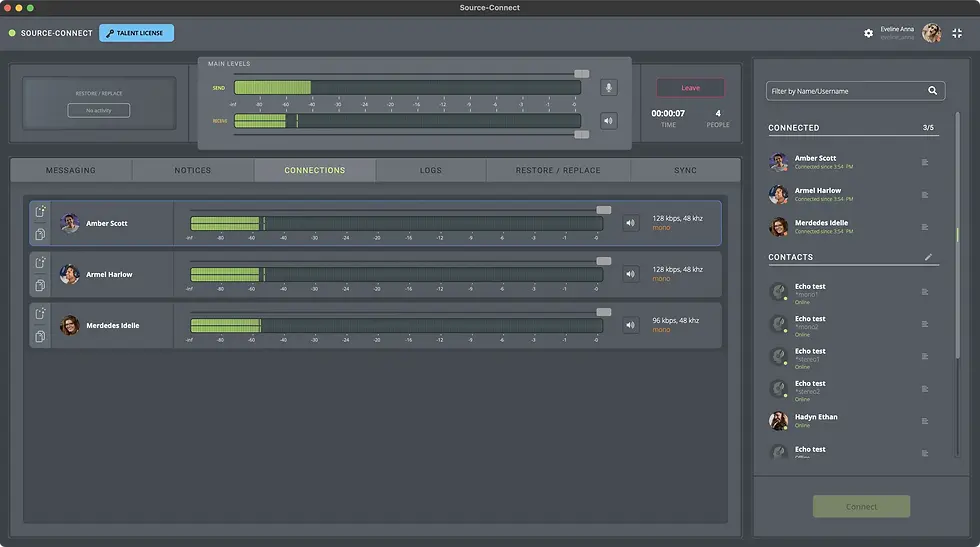
Pro-Tip for Source-Connect 4 Users
The cool thing about this setup if you’re using Source-Connect 4 is that you can turn the clients down in your ears directly inside the app interface. It’s a big upgrade from Version 3 and gives you total control over your headphone mix.
Want to Master Your Remote Session Setup?
Knowing the theory is one thing—getting hands-on practice in a live environment is where it actually clicks. In my Connection Clinic, we drill these exact workflows live, test your routing, and troubleshoot dual-app setups so you never have to panic during a paid session.
Click here to reserve your spot for the next Connection Clinic at frankverderosa.com/events and get your rig session-ready!

Frank Verderosa is an award-winning audio engineer and voiceover casting director with decades of industry experience. As the owner of POV Audio, he casts, sound-designs, and mixes television, radio, and promo campaigns for leading ad agencies and networks. Outside the studio, Frank supports the voice actor community through coaching, consulting, and demo production for talent at every level. To connect or learn more, visit www.frankverderosa.com and use the chat tab or explore the Voice Actor Services section.


Comments